

The clients list can travel to Excel and back. You download it to review it, to share it or to fix many clients at once, and you import a file to update those clients or to add new ones without typing them one by one.
Both buttons sit in the bar above the table of Clients, under Sales: Export and Import. They work the same way on other lists, which columns, export and long text in a list explains in general; this guide covers what is particular to clients.
Who sees the buttons
- Export is there for anyone who can open the list, that is, anyone with See Client.
- Import needs See Client and Create Client together. Someone who can only read clients does not get the button.
- Each row of an import that changes a client already in the system also needs Update Client. Without it, that row is refused and the rest go on.
The owner's role has all three.
Export the list
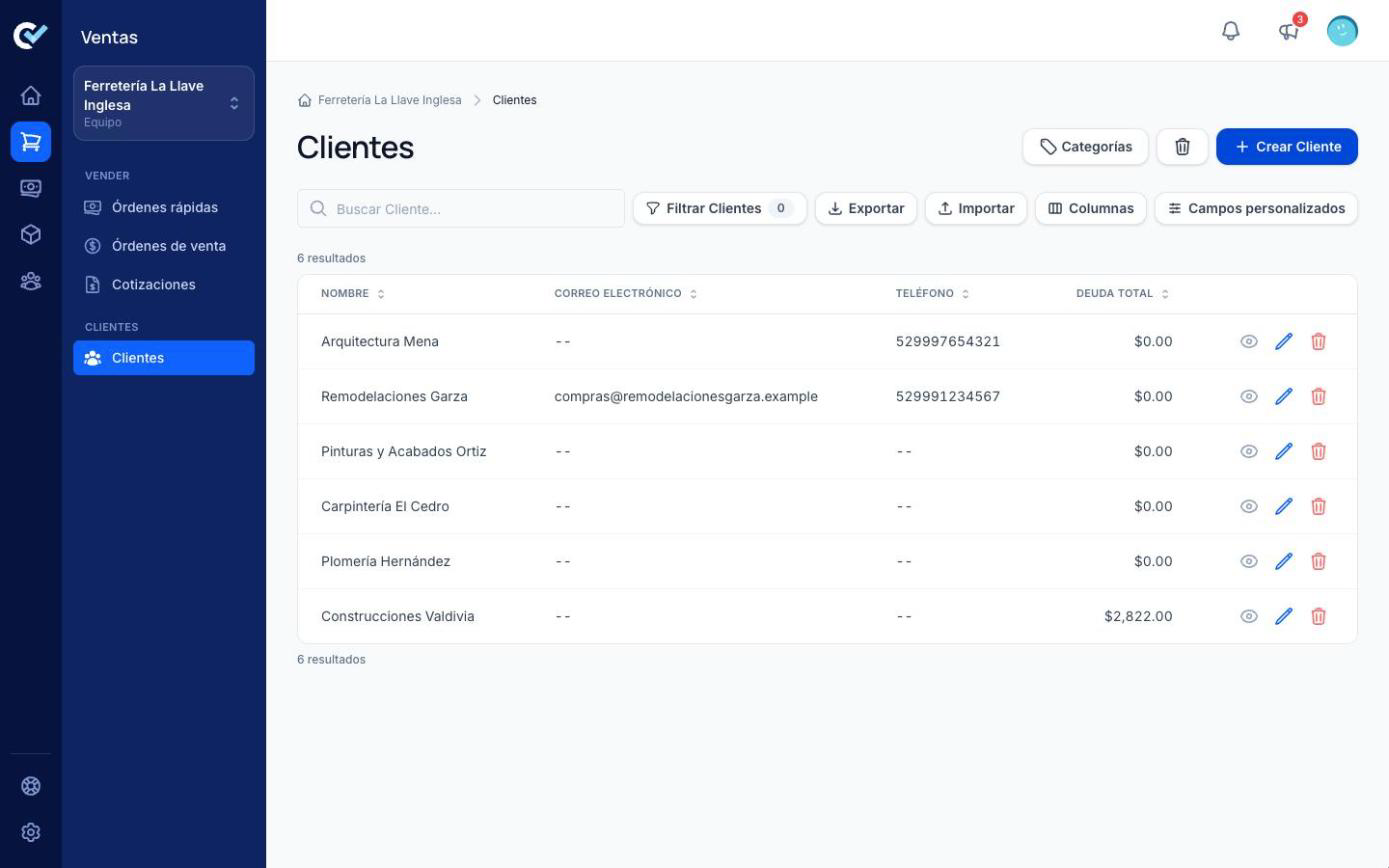
- Open Clients under Sales. Search or filter first if you only want part of them: the file holds every client the search and the filters leave, in the list's order, not only the page on screen.
- Click Export. A window asks which columns the file includes:
- All columns, already selected: every column of the list, including the hidden ones.
- Visible columns: only the columns the table is showing now, in their order.
- Click Export in the window. The file downloads at once; nothing waits in a queue, unlike the reports.
The export is not a backup of everything: it is the clients list as a spreadsheet.
What the file holds
The first column is always ID, the client's number in the system, and Name is always there too, even with Visible columns: the import needs both.
With All columns the file also carries Client Code, Email, Phone, WhatsApp, Country, City, Address, Description, Total Debt, the creation and update dates and every custom field your team added (see add custom fields to clients). When the loyalty wallet, price lists or fiscal invoicing are on for your team, their columns come too: Electronic Wallet Percentage, Price List and the Mexico fiscal data.
A column with fixed options, such as Price List or a custom field of type List of options, opens a dropdown in Excel with the values it accepts.
Prepare the file
The easiest file to import is one you exported with All columns: change the cells you need, add rows at the bottom, and save it as Excel (XLSX or XLS) or CSV.
- Keep the headings as the export wrote them. The import recognises each column by its heading, in the language the system was in when you exported. Import the file with the system in that same language, and rename nothing: change only the cells.
- Keep the ID column. A file without a column headed ID is not imported at all. Its cells decide what each row does:
- With the ID of one of your clients, the row updates that client.
- Empty, the row creates a new client.
- With a number that is not one of your clients — one from another team, one in the trash, or a mistyped number that matches none of yours — the row is refused.
- Name is required in every row.
- Email and Phone cannot repeat a client of your team, including one in the trash, nor another row of the same file. The row of a client keeps its own email and phone without conflict.
- Phone is the international prefix and the number together, digits only, with no spaces, dashes or signs:
5219991234567. - The rest follows the same rules as the client form: an RFC with the right shape, a postal code of five digits, an option that exists in its list.
A client is matched by its ID and nothing else. A new row with the name of a client you already have and no email or phone creates a second client with that name; one with an email or phone already in use is refused instead.
Leaving a cell empty empties that field. To leave a field as it is, keep its current value in the cell, or remove that whole column from the file — any column except ID and Name. Columns you cannot edit in the form — WhatsApp, Total Debt and the dates — are ignored, so changing them in the file does nothing.
Import the file
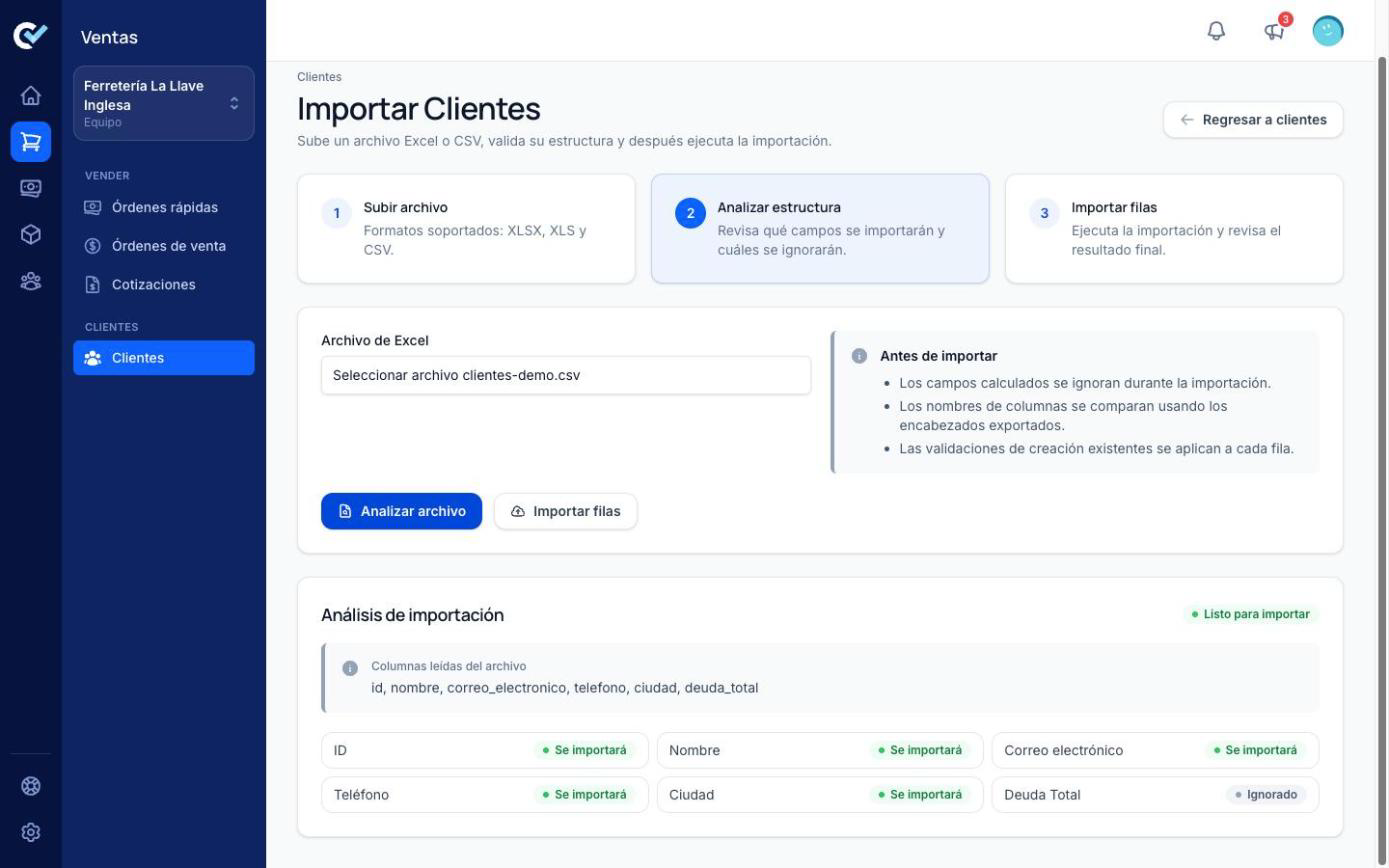
Click Import on the clients list. The page Import Clients shows three steps.
-
Upload file. Pick the file under Excel file; a bar shows the upload.
-
Analyze structure. Click Analyze file. Nothing is saved yet. The Import analysis panel says Ready to import or Needs attention, lists the Columns read from file, and marks each column as Will import, Ignored or, for the ID, Missing from file. Columns the clients list does not know appear under Extra columns in file, as Ignored.
-
Import rows. The button is enabled once the analysis says Ready to import. Click it and wait while Importing rows is shown.
When it ends, Import result gives three counts:
| Count | What it means |
|---|---|
| Imported | Rows that created or updated a client. |
| Ignored | Rows that brought nothing to save. Completely empty rows are skipped and not counted. |
| Errors | Rows refused. Each one is listed below as Row and its number, with the reason. |
The row number is the line in the spreadsheet, counting the headings as line 1, so Row 5 is the fifth line of the sheet.
Needs attention comes with the reason above the columns. The two you are most likely to meet are a file with no ID column, and a file in which none of the columns can be imported — usually headings renamed or written in another language. Fix the file, choose it again and analyze it again: choosing another file clears the previous analysis.
When a row is refused
A refused row saves nothing, and it does not stop the others: every row listed as imported is already saved. So you never import the whole file twice to fix a few rows.
- Read the reason of each row in Import result — a name missing, an email or phone already in use, a phone with spaces, an ID that is not yours.
- Correct those rows in the file. Keep only them if you like: the rows already imported do not need to go again.
- Upload the file, analyze it and import it again.
A row imported twice with its ID only updates the same client again. A row with an empty ID imported twice creates the client twice, unless its email or phone stops the second one — so after a partial import, give the new clients that already went in their ID, or remove those rows, before you import the file again.
To check a client after importing, open it from the list: clients and their history explains every field of the file.