
Move stock between branches
How a transfer is written, sent and received, what it does to the stock of each branch at each step, what cancelling gives back, and who may do each part.
A transfer moves units of a product from one branch to another, in two steps that match what actually happens: the goods leave one branch, and later somebody at the other end confirms they arrived. Between those two moments the stock is out of the first branch and not yet in the second, which is exactly where it is in real life.
Transfers need inventory and branches both on for your team, and they are only offered while you are standing inside a branch — moving stock means nothing from All Branches. The screen is Transfers, under Inventory, at /team/inventory/transfers.
The list
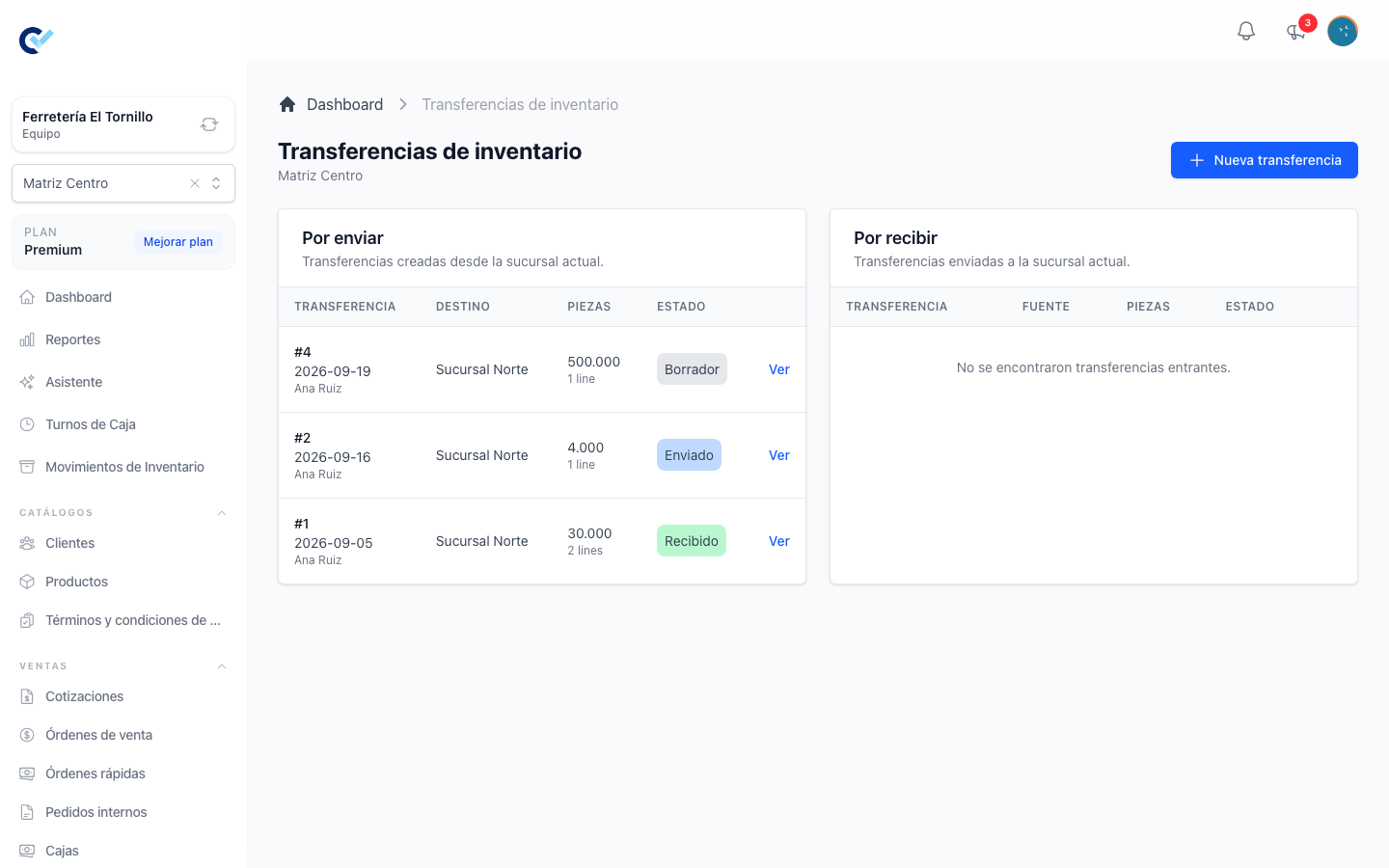
The list has two halves, and which half a transfer is in depends on where you are standing:
- To send — everything created from the branch you are in, drafts included.
- To receive — everything sent to the branch you are in. Drafts are left out: a transfer nobody has sent yet is not on its way anywhere, and the destination has no business seeing it.
Writing one
New transfer opens one, already stamped with today's date and with the branch you are in as the origin. The origin is not a field: it is where you are.
| Field | |
|---|---|
| Date | Required. Defaults to today. |
| Destination branch | Required before sending. Any branch of the team except the origin. |
| Description | Optional, up to a short line. What it is for. |
Add products the same way as anywhere else: search them or scan them. Only products that use inventory can be transferred — a service has no units to move, and the screen says so rather than adding a line that means nothing. Adding a product that is already on the transfer adds one to its quantity instead of a second line. Quantities go down to three decimals, and the smallest that can be left is 0.001; to take a line off entirely, remove it.
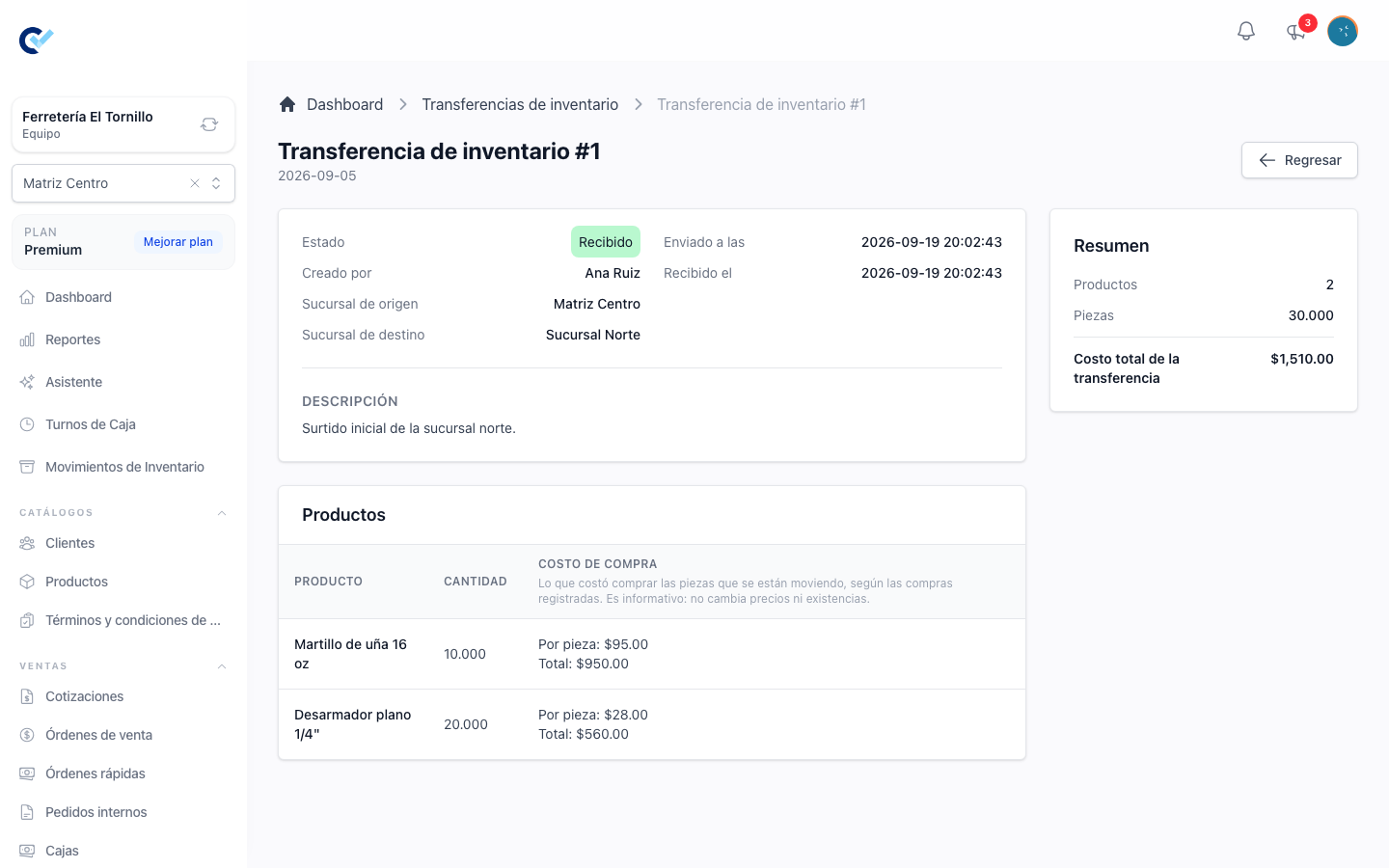
With purchase orders on, the transfer also shows what the pieces being moved cost, walked over the oldest purchases of the origin branch. When part of the quantity has no purchase behind it, the cost is shown as unknown rather than as a partial figure: a total that looks complete without being it is worse than none.
Save draft leaves it on the list to finish later. Nothing has moved yet.
Sending it
Send is the step that moves stock. It refuses unless all of it holds: there is at least one product, there is a destination, the destination is not the origin, and the origin branch actually has the quantities being sent.
Once it goes through:
- the units leave the origin branch's stock, straight away;
- the transfer takes a folio and the status Sent, stamped with who sent it and when;
- it stops being editable, and it appears under To receive in the destination branch.
The units are nowhere countable at this point. They are not in the origin any more and not in the destination yet, which is what a transfer in transit is.
Receiving it
Receive is done from the destination branch — by someone standing in it, not by whoever sent it. That is the whole point of the two steps: the branch that gets the goods is the one that says they arrived.
Receiving puts the units into the destination branch's stock and closes the transfer as Received. A received transfer is final: it is not cancelled, not edited, not reversed. Goods that have to go back are a new transfer the other way.
Cancelling it
A transfer that was sent and not yet received can be cancelled, and cancelling asks for a reason before it will go through. It returns every unit to the origin branch's stock and leaves the transfer as Cancelled, with the reason, who cancelled it and when.
That is the only way to undo a send. A draft is not cancelled — it is simply never sent.
The four statuses
| Status | Where the stock is |
|---|---|
| Draft | Nowhere yet. Nothing has moved; the transfer is still being written. |
| Sent | Out of the origin, not yet in the destination. |
| Received | In the destination. Closed. |
| Cancelled | Back in the origin. Closed. |
Who may do what
Transfers have their own permissions, apart from the rest of inventory:
- See Inventory Transfer to open the list and a transfer.
- Create Inventory Transfer to write one.
- Update Inventory Transfer to edit a draft, and only from the origin branch.
On top of the permission, where you are standing decides what is offered. You see a transfer when you are in its origin branch, or in its destination once it has been sent. You send from the origin. You receive only in the destination. There is no permission that lets somebody do both ends from one place, on purpose.
Deleting a transfer does not exist at all. The record of stock having moved is not something the system lets anyone remove.
Where it shows up afterwards
Every send and every receive is a movement of stock like any other, and it is listed with its transfer as the document behind it — see every movement of your stock.