
Crea una orden de venta
Cómo registrar una venta de principio a fin — productos, cómo paga el cliente, qué cambia al finalizarla y qué puedes seguir haciendo después.
La orden de venta es la venta misma. A diferencia de una cotización, terminar una tiene consecuencias: saca el inventario, registra el dinero que se cobró y deja un adeudo al cliente cuando va a pagar después. Es además el documento a partir del cual se arma una factura fiscal.
Las órdenes de venta viven dentro de Ventas, en la lista que tu equipo llama Órdenes de venta salvo que la haya renombrado. Algunas pantallas todavía muestran un nombre anterior de este documento; se trata del mismo documento.
La lista
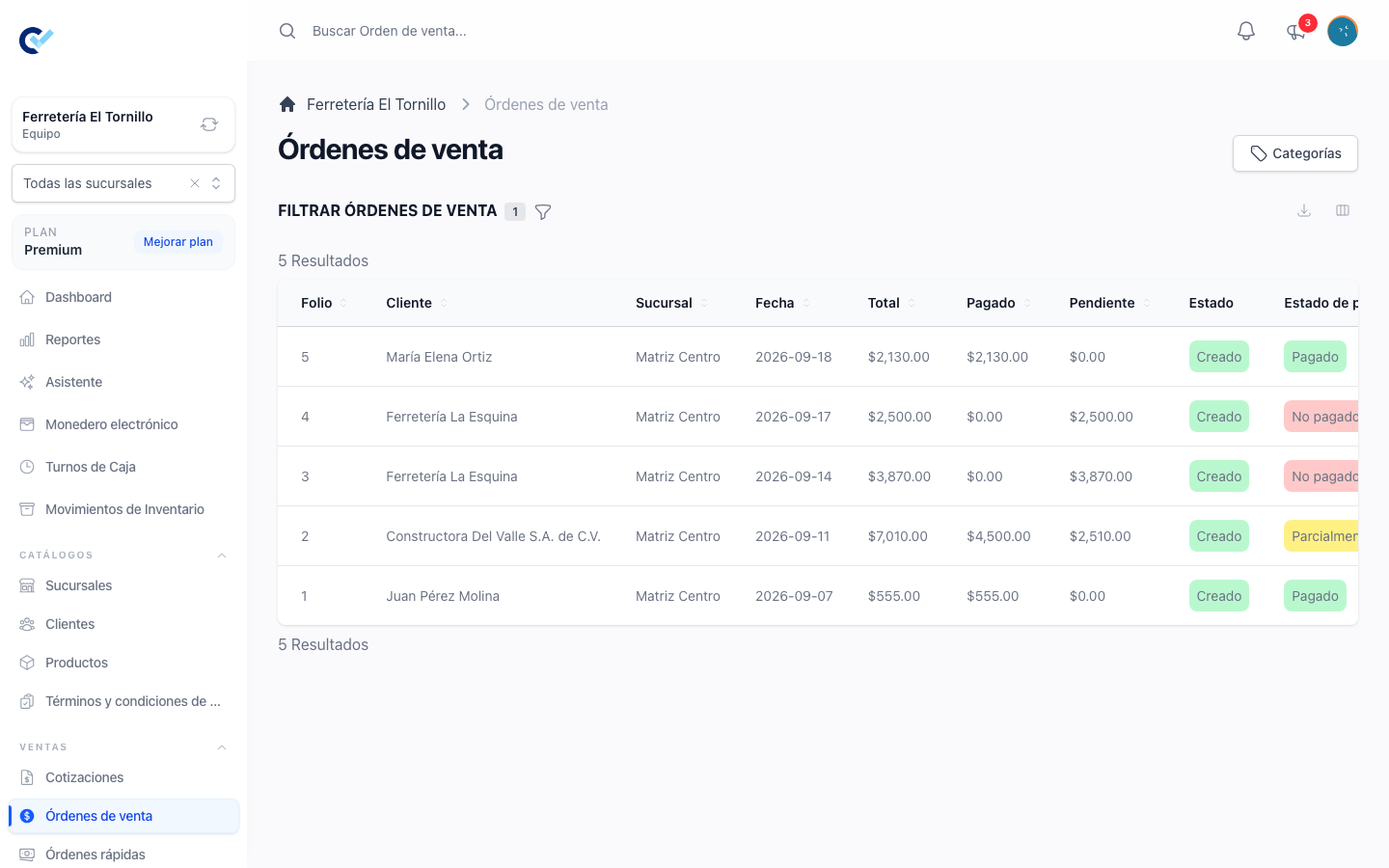
/team/sell_orders muestra las órdenes de venta del equipo en el que estás —o sólo las de la sucursal en la que estás parado, cuando tu equipo usa sucursales. Cada fila lleva el folio, el cliente, la categoría, la fecha, el total, cuánto se ha pagado, cuánto sigue pendiente, el estado y el estado de pago, y se les suma una columna de sucursal cuando estás viendo todas a la vez.
Salvo que tu rol esté limitado a tus propios registros, el filtro Creado por abre puesto en ti. Límpialo para ver las de todos. Los demás filtros acotan por estado, estado de pago, categoría y rango de fechas.
Una orden de venta que abriste y nunca guardaste no aparece en la lista.
Empieza una
Crear Orden de venta, arriba a la derecha de la lista. Necesitas el permiso de crear, y tu plan tiene que tener espacio: cuando el equipo ya usó todos los documentos que su plan permite, la creación se detiene y un mensaje te lleva a tus planes.
Si vendes en mostrador y cobras en el momento, Órdenes rápidas, en el mismo grupo, es una versión corta de este mismo documento, hecha para la velocidad: una sola pantalla, efectivo ya seleccionado, un cliente predeterminado si tu equipo lo configuró, y el ticket enviado a imprimir en cuanto terminas. Cuando tu equipo cierra caja al final del día, además te pide abrir tu turno antes de dejarte vender. Todo lo que sigue describe el formulario completo.
Qué pide el formulario
| Campo | Qué decide |
|---|---|
| Cliente | Quién está comprando. Obligatorio. Escribe para buscar; cada resultado muestra el teléfono del cliente debajo del nombre. Si nadie coincide, Crear cliente abre un formulario corto que sólo pide nombre y teléfono, ya con lo que escribiste. |
| Fecha | La fecha que lleva la venta. Obligatoria; empieza en hoy. |
| Categoría | Opcional, de entre las categorías que tu equipo creó para órdenes de venta. |
| Usuario | Quién es responsable de la venta. Obligatorio; empieza en ti. |
| Tipo de pago inicial | Cómo está pagando el cliente ahora mismo. Obligatorio. Es la decisión que le da forma al resto de la pantalla; se explica abajo. |
| Descripción | Opcional, una línea. |
| Condiciones de pago | Texto libre opcional: plazos, fechas límite, acuerdos. Se imprime en el documento. |
En el campo de cliente aparecen dos cosas cuando corresponde: una advertencia cuando ese cliente ya debe dinero y, cuando tu equipo usa el monedero electrónico, el saldo disponible del cliente con una casilla para aplicarlo a esta venta.
Tipo de pago inicial
| Opción | Qué pasa |
|---|---|
| Pago completo | El cliente paga todo ahora. Lo que captures tiene que sumar exactamente el total de la orden. |
| Pago parcial | El cliente paga una parte ahora. Capturas el importe; el resto queda como saldo pendiente de la venta. |
| Pago a crédito | El cliente no paga nada ahora. No se captura ningún pago y la venta se finaliza sin pagar, lista para recibir pagos después. |
Elegir cualquier opción distinta al crédito requiere permiso para registrar pagos. Si no lo tienes, el campo regresa a crédito y la pantalla te dice que consultes con tu administrador.
Agrega los productos
Esta parte funciona igual que en una cotización: el selector Producto busca en tu catálogo, un lector de código de barras agrega un producto por su código mientras ningún campo está enfocado, y cada partida lleva precio, descuento, cantidad y total, más una columna de subtotal y otra de impuestos cuando tu equipo factura o tiene impuestos activados. Las partidas se pueden duplicar, eliminar y arrastrar al orden en que quieres que se impriman, y la fila Subtotal lleva un descuento que aplica a todos los productos a la vez.
Hay una diferencia que importa. Una orden de venta saca inventario, así que cuando tu equipo usa inventario la cantidad se verifica contra lo que realmente hay disponible:
- el campo de cantidad no pasa del stock de tu sucursal;
- una partida por encima del stock disponible se marca con Supera el stock y dice cuánto queda;
- finalizar se rechaza, indicando el producto, la cantidad disponible y la cantidad que pediste.
Los productos que manejan inventario muestran su cantidad actual debajo del campo de cantidad, para que veas con qué estás trabajando antes de comprometerte.
Cuando tu equipo usa términos y condiciones, la sección que está debajo de los productos te deja agregar o quitar términos sólo para esta venta.
Captura el pago
Salvo que la venta sea a crédito, debajo de los productos aparece una sección Pago.
El campo Método de pago lista los métodos de tu equipo —efectivo, tarjeta de crédito, transferencia bancaria, tarjeta de débito, más cualquier método que tu equipo haya nombrado— y una opción adicional, Varios métodos de pago, para una venta repartida en más de uno.
Lo que pide la sección depende entonces del método:
- En efectivo pide el Total recibido y muestra el Cambio de dinero que calcula. Lo recibido no puede ser menor que lo que se está pagando.
- Tarjeta de crédito muestra la Comisión que agrega, ya calculada, y pide un Número de validación.
- Transferencia bancaria pide un Número de autorización.
- Un pago parcial pide el Total a abonar.
- La Fecha de pago registra cuándo entró realmente el dinero; empieza en este momento.
Que esos números de referencia sean obligatorios es una configuración del equipo.
Con Varios métodos de pago obtienes un bloque por método, cada uno con su propio método e importe, un botón Agregar método de pago para añadir otro, y una línea debajo que muestra cuánto llevas Capturado y cuánto queda Restante. El total capturado nunca puede exceder lo que vale la venta, y en un pago completo tiene que coincidir exactamente.
Termínala, o déjala para después
Tres botones cierran el formulario.
Generar PDF produce una vista previa antes de que la venta exista como documento terminado. Corre las mismas verificaciones que finalizar, después pide un folio y una descripción opcional, y descarga un PDF que muestra la venta tal como quedará una vez finalizada, pago incluido. Cuando tu equipo usa pedidos internos, el mismo panel puede guardarla como uno en lugar de descargarla.
Guardar como borrador la conserva como borrador: revisa los campos obligatorios y te regresa a la lista. Un borrador no tiene folio, no mueve inventario, se puede editar libremente y es el único estado en el que una orden de venta se puede eliminar de plano.
El botón de finalizar, al pie de la pantalla, emite la venta. Antes de hacerlo verifica todo: los campos obligatorios, que la venta tenga al menos un producto, que el total no sea negativo, que los productos reservables estén libres en sus fechas, que haya inventario suficiente y que el pago cuadre. Si algo de eso falla, la venta se detiene y se te dice por qué.
Qué cambia al finalizar
- La orden de venta recibe su folio: el siguiente número de tu equipo, o de tu sucursal cuando tu equipo usa sucursales.
- Sale el inventario de cada producto que lo maneja.
- En un pago completo o parcial, los pagos que capturaste quedan registrados como cobrados, en la fecha de pago que diste.
- A crédito no se registra ningún pago y la venta queda marcada como no pagada.
- Se crean las reservaciones de los productos reservables.
- La venta ya no se puede editar desde este formulario.
Entonces se abre un panel con lo que sigue: Ver el expediente de la venta, los controles de PDF para abrirlo, descargarlo o enviarlo por correo, Enviar por whatsapp cuando el cliente tiene teléfono y tu plan todavía permite enviar documentos, y el Enlace directo a la página pública, que copias haciendo clic en el campo.
Después de la venta
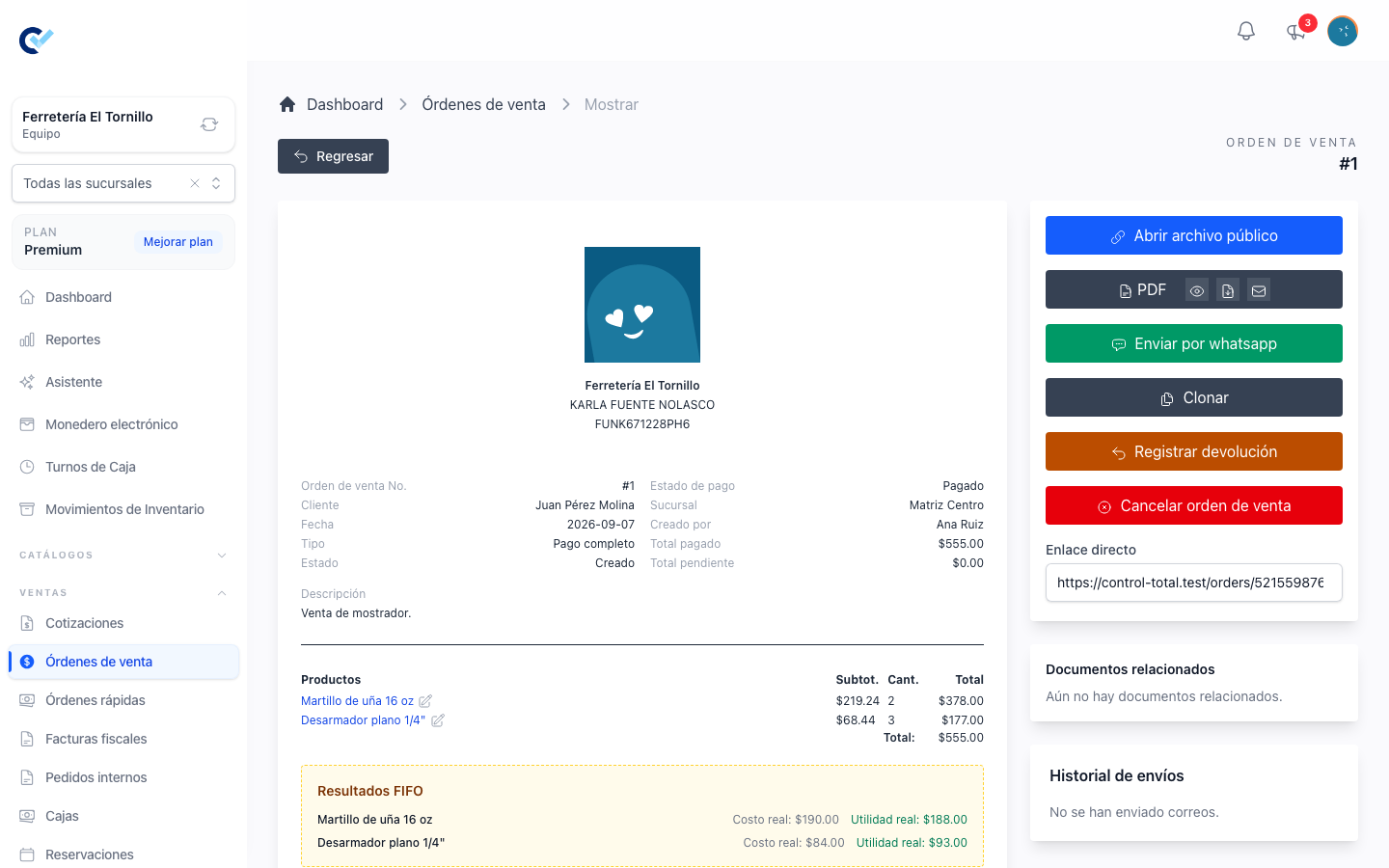
Abre el expediente de la orden de venta desde la lista para ver todo lo que lleva: productos, totales, cuánto está pagado y cuánto pendiente, el historial de pagos y ajustes, los documentos relacionados y la línea de tiempo completa. El panel de la derecha es donde viven las acciones restantes.
| Qué pasó | Qué hacer |
|---|---|
| El cliente paga parte o todo el saldo | Agregar pago — método, importe y fecha. Necesita el permiso de pagos |
| El cliente devuelve mercancía | Registrar devolución — elige los productos y las cantidades, di si lo que regresó es reintegrable o está dañado, y registra el reembolso. Necesita el permiso de devoluciones |
| Le condonas parte de lo que debe | Aplicar descuento posterior — reduce el saldo pendiente y no mueve dinero. Necesita el permiso de descuentos |
| Hay que deshacer la venta | Cancelar orden de venta — el motivo es obligatorio, y eliges si se registra un reembolso y si el inventario regresa. Necesita el permiso de eliminar |
| Hay que rehacer la venta | Reciclar — crea una nueva versión de la venta, traspasa los pagos, regresa el inventario y marca la anterior como reemplazada. Las dos versiones quedan ligadas y visibles |
| El cliente pide factura | Crear factura fiscal, cuando tu equipo tiene configurada la facturación fiscal. Si la venta ya tiene una, te pregunta si quieres otra |
| Quieres la misma venta otra vez | Clonar |
Una orden de venta terminada nunca se borra. Cancelarla la conserva, con el motivo, la persona que la canceló y la fecha, en el registro para siempre.
Permisos
| Acción | Permiso, en el guard team |
|---|---|
| Ver la lista y abrir una orden de venta | retrieve sell_order |
| Crear una, y seguir editando tu propio borrador | create sell_order |
| Editar el borrador de alguien más, o editar una venta terminada | update sell_order |
| Eliminar un borrador, o cancelar una venta terminada | delete sell_order |
| Capturar un pago, aquí o después | create payment |
| Registrar una devolución | return_sell_orders |
| Aplicar o quitar un descuento posterior | discount_sell_orders |
| Crear la factura fiscal | create fiscal_invoice |
El propietario del equipo pasa todos sin tenerlos. Un rol que solo ve sus datos trabaja sus propias ventas sin el permiso general de consulta, pero sigue necesitando los permisos de actualizar y eliminar para cambiarlas o cancelarlas.
Si llegaste aquí desde una cotización, la conversión ya llenó el cliente, los productos, los precios y los términos: aterrizas en este formulario con el pago pendiente de capturar. Consulta Crea una cotización.